从零实现父亲节鸿蒙 App 教程
- 2026-06-25 10:01:17
🎁 从零实现父亲节鸿蒙 App 教程
难度:⭐ 入门级适合:完全零基础的小白目标:30 分钟做出一个能跑在手机上的父亲节 App项目源码:https://atomgit.com/jianguoxu/fathersday[1]
📖 目录
准备工作[2] 创建项目[3] 写第一个页面[4] 添加资源文件[5] 配置设备支持[6] 运行到真机/模拟器[7] 总结[8]
1. 准备工作
1.1 安装 DevEco Studio
DevEco Studio 是华为官方的鸿蒙开发工具,基于 IntelliJ IDEA。
打开浏览器,访问:https://developer.huawei.com/consumer/cn/deveco-studio/[9] 点击 下载 下载完成后,双击 .dmg文件(Mac)或.exe文件(Windows)按照提示完成安装
1.2 配置 SDK
第一次启动 DevEco Studio 时,它会引导你下载 HarmonyOS SDK:
启动 DevEco Studio 在欢迎界面点击 "SDK Manager" 或进入 Settings → SDK Manager 确保勾选了 API 26(或更高版本) 点击 Apply 下载安装
1.3 准备运行设备
有两种方式运行 App:
方式 A:使用模拟器(推荐初学者)
在 DevEco Studio 顶部工具栏,找到设备下拉菜单 选择 "Device Manager" → 创建一个手机模拟器 启动模拟器
方式 B:使用真机
需要一台鸿蒙手机(HarmonyOS 4.0+) 手机开启 **"开发者模式"**:设置 → 关于手机 → 连续点击版本号 7 次 进入 **"开发人员选项"**,打开 "USB 调试" 用数据线连接电脑
2. 创建项目
2.1 新建项目
打开 DevEco Studio,点击 "Create New Project" 选择模板:**"Empty Ability"**(空模板) 这是最基础的模板,只有一页 Hello World 点击 Next
2.2 填写项目信息
| Project Name | FathersDayApp | |
| Bundle Name | com.example.fathersday | |
| Save Location | ||
| Compatible SDK | 6.1.0(23) | |
| Target SDK | 26 |
点击 Finish,等待项目创建完成。
2.3 认识项目结构
创建完成后,你会看到左侧的文件列表,结构如下:
FathersDayApp/├── AppScope/ # 应用级别的配置│ ├── app.json5 # 应用信息(名称、图标等)│ └── resources/ # 应用级资源├── entry/ # 主模块(相当于一个 App)│ └── src/main/│ ├── ets/│ │ ├── entryability/ # 入口 Ability(应用启动入口)│ │ └── pages/│ │ └── Index.ets # ⭐ 主页面,我们主要改这个文件│ ├── module.json5 # 模块配置(重要!)│ └── resources/ # 模块级资源├── build-profile.json5 # 构建配置└── oh-package.json5 # 依赖管理💡 对于初学者,你只需要关心 3 个文件:
Index.ets— 页面的 UI 代码module.json5— 设备的配置string.json和color.json— 文字和颜色
3. 写第一个页面
下面我们来写父亲节的主页面。
3.1 打开 Index.ets
找到 entry/src/main/ets/pages/Index.ets,双击打开。
你会看到初始代码:
@Entry@Componentstruct Index {@State message: string = 'Hello World'; build() { RelativeContainer() { Text(this.message) .id('HelloWorld') .fontSize(50) .fontWeight(FontWeight.Bold) .alignRules({ center: { anchor: '__container__', align: VerticalAlign.Center }, middle: { anchor: '__container__', align: HorizontalAlign.Center } }) .onClick(() => {this.message = 'Welcome'; }) } .height('100%') .width('100%') }}3.2 逐行理解代码
先别急着删,理解每一行的作用:
@Entry | |
@Component | |
struct Index | |
@State message | |
build() | |
RelativeContainer | |
Text(...) | |
.fontSize(50) | |
.height('100%') |
3.3 替换成父亲节页面
把整个文件内容替换成下面的代码。不需要理解每一行,先复制,后面会解释。
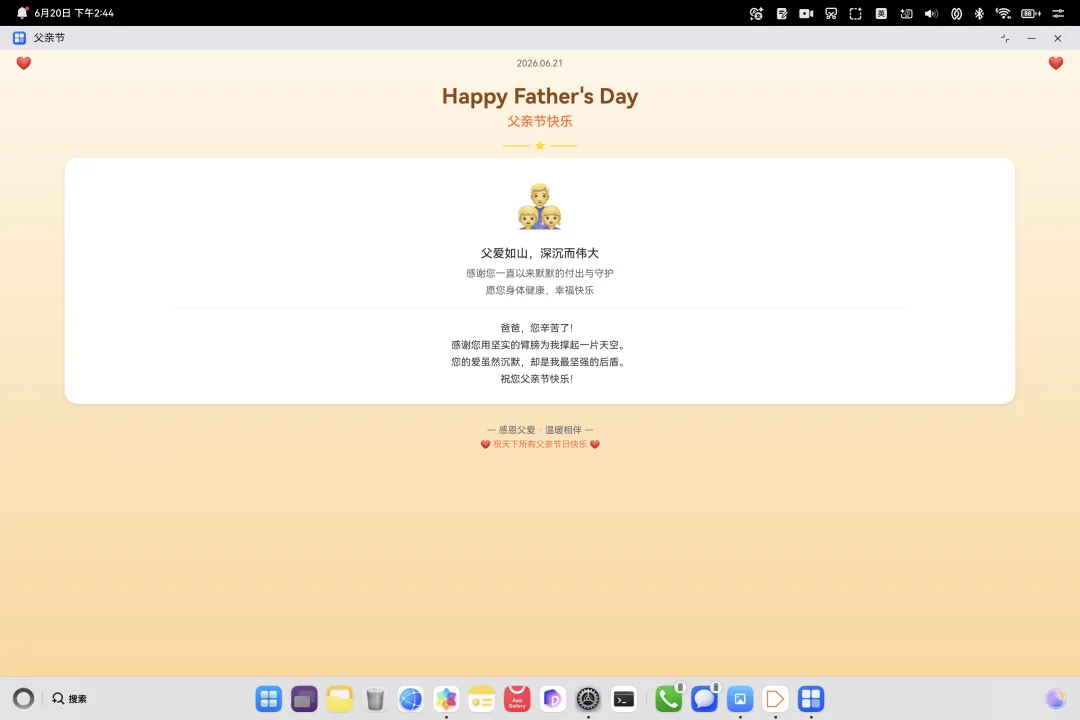
@Entry@Componentstruct Index {@State showBlessing: boolean = false;@State heartScale: number = 1.0;@State titleOpacity: number = 0;@State titleOffsetY: number = -50;@State cardScale: number = 0.8;@State cardOpacity: number = 0; aboutToAppear(): void { animateTo({ duration: 1000, curve: Curve.EaseOut }, () => {this.titleOpacity = 1;this.titleOffsetY = 0; }); animateTo({ duration: 800, delay: 400, curve: Curve.EaseOut }, () => {this.cardScale = 1;this.cardOpacity = 1; }); } build() { Column() {// ===== 顶部装饰条 ===== Row() { Text('❤') .fontSize(20) .fontColor(Color.Orange) Blank() Text('2026.06.21') .fontSize(14) .fontColor(Color.Gray) Blank() Text('❤') .fontSize(20) .fontColor(Color.Orange) } .padding({ left: 24, right: 24, top: 8 }) .width('100%')// ===== 标题区域 ===== Column() { Text('Happy Father\'s Day') .fontSize(32) .fontWeight(FontWeight.Bold) .fontColor(Color.Brown) .textAlign(TextAlign.Center) .opacity(this.titleOpacity) .offset({ y: this.titleOffsetY }) Text('父亲节快乐') .fontSize(20) .fontWeight(FontWeight.Medium) .fontColor(Color.Orange) .textAlign(TextAlign.Center) .margin({ top: 8 }) .opacity(this.titleOpacity) .offset({ y: this.titleOffsetY }) } .width('100%') .padding({ top: 20, bottom: 8 })// ===== 祝福卡片 ===== Column() {// 家庭图标(带心跳动画) Text('👨👧👦') .fontSize(64) .scale({ x: this.heartScale, y: this.heartScale }) .onAppear(() => { animateTo({ duration: 600, curve: Curve.EaseInOut, iterations: -1 }, () => {this.heartScale = 1.15; }); })// 三句祝福语 Text('父爱如山,深沉而伟大') .fontSize(18) .fontWeight(FontWeight.Medium) .fontColor(Color.Black) .textAlign(TextAlign.Center) .margin({ top: 12 }) Text('感谢您一直以来默默的付出与守护') .fontSize(15) .fontColor(Color.Gray) .textAlign(TextAlign.Center) .margin({ top: 8 }) Text('愿您身体健康,幸福快乐') .fontSize(15) .fontColor(Color.Gray) .textAlign(TextAlign.Center) .margin({ top: 4 })// 分隔线 Divider() .width('80%') .color('#E8E8E8') .margin({ top: 16, bottom: 8 })// 按钮 或 祝福全文if (!this.showBlessing) { Button('点击送上祝福 💝') .fontSize(16) .fontWeight(FontWeight.Medium) .fontColor(Color.White) .backgroundColor(Color.Orange) .borderRadius(25) .width(220) .height(50) .margin({ top: 8, bottom: 8 }) .onClick(() => { animateTo({ duration: 500, curve: Curve.EaseOut }, () => {this.showBlessing = true; }); }) } else { Text('爸爸,您辛苦了!\n' +'感谢您用坚实的臂膀为我撑起一片天空。\n' +'您的爱虽然沉默,却是我最坚强的后盾。\n' +'祝您父亲节快乐!') .fontSize(15) .fontColor(Color.Black) .textAlign(TextAlign.Center) .lineHeight(26) .margin({ top: 8, bottom: 4 }) } } .width('88%') .backgroundColor(Color.White) .borderRadius(20) .padding({ top: 24, bottom: 24, left: 20, right: 20 }) .shadow({ radius: 16, color: 'rgba(0,0,0,0.08)', offsetX: 0, offsetY: 4 }) .scale({ x: this.cardScale, y: this.cardScale }) .opacity(this.cardOpacity)// ===== 底部装饰 ===== Text('❤ 祝天下所有父亲节日快乐 ❤') .fontSize(13) .fontColor(Color.Orange) .textAlign(TextAlign.Center) .margin({ top: 24 }) } .width('100%') .height('100%')// 暖色渐变背景 .linearGradient({ direction: GradientDirection.Bottom, colors: [['#FFF5E6', 0], ['#FFD699', 1]] }) .justifyContent(FlexAlign.Start) }}3.4 代码解释(小白版)
上面代码里有很多新东西,下面是简化版解释:
布局组件(搭积木)
Column | ||
Row | ||
Text | ||
Button | ||
Divider | ||
Blank |
状态变量(@State)
@State showBlessing: boolean = false;@State表示这个变量是"响应式"的当变量值改变时,页面会自动重新渲染 比如点击按钮后 showBlessing变成true,按钮消失,祝福文字出现
动画(animateTo)
animateTo({ duration: 1000 }, () => {this.titleOpacity = 1; // 1秒内透明度从0变到1});animateTo让状态变化"慢慢变"而不是"瞬间变"duration是动画时长(毫秒)delay是延迟多久开始iterations: -1是无限循环
条件渲染(if/else)
if (!this.showBlessing) {// 显示按钮} else {// 显示祝福文字}根据 showBlessing 的值,决定显示按钮还是祝福全文。
4. 添加资源文件
资源文件就是单独管理文字和颜色,方便统一修改。
4.1 修改文字资源
打开 entry/src/main/resources/base/element/string.json,替换全部内容为:
{"string": [ {"name": "module_desc","value": "父亲节快乐" }, {"name": "EntryAbility_desc","value": "父亲节快乐 - 感恩父爱" }, {"name": "EntryAbility_label","value": "父亲节" }, {"name": "title_main","value": "Happy Father's Day" }, {"name": "title_sub","value": "父亲节快乐" }, {"name": "message_1","value": "父爱如山,深沉而伟大" }, {"name": "message_2","value": "感谢您一直以来默默的付出与守护" }, {"name": "message_3","value": "愿您身体健康,幸福快乐" }, {"name": "btn_text","value": "点击送上祝福 💝" }, {"name": "blessing_text","value": "爸爸,您辛苦了!\n感谢您用坚实的臂膀为我撑起一片天空。\n您的爱虽然沉默,却是我最坚强的后盾。\n祝您父亲节快乐!" } ]}4.2 修改颜色资源
打开 entry/src/main/resources/base/element/color.json,替换全部内容为:
{"color": [ {"name": "start_window_background","value": "#FFF5E6" }, {"name": "bg_start","value": "#FFF5E6" }, {"name": "bg_end","value": "#FFD699" }, {"name": "card_bg","value": "#FFFFFF" }, {"name": "title_color","value": "#8B4513" }, {"name": "text_primary","value": "#333333" }, {"name": "text_secondary","value": "#666666" }, {"name": "accent","value": "#FF6B35" }, {"name": "gold","value": "#FFD700" } ]}4.3 更新 AppScope 的应用名
打开 AppScope/resources/base/element/string.json,改成:
{"string": [ {"name": "app_name","value": "父亲节快乐" } ]}💡 为什么要用资源文件?
直接在代码里写文字也可以,但用资源文件的好处:
所有文字集中管理,一目了然 方便以后做多语言(英文版、日文版等) 代码更干净,修改时不用翻代码
5. 配置设备支持
5.1 支持 2in1 设备
打开 entry/src/main/module.json5,找到 deviceTypes,改成:
"deviceTypes": ["phone","2in1"],这表示你的 App 既支持手机,也支持平板/二合一设备。
5.2 module.json5 完整文件
如果你不确定其他内容对不对,这是完整的 module.json5:
{"module": {"name": "entry","type": "entry","description": "$string:module_desc","mainElement": "EntryAbility","deviceTypes": ["phone","2in1" ],"deliveryWithInstall": true,"installationFree": false,"pages": "$profile:main_pages","abilities": [ {"name": "EntryAbility","srcEntry": "./ets/entryability/EntryAbility.ets","description": "$string:EntryAbility_desc","icon": "$media:layered_image","label": "$string:EntryAbility_label","startWindowIcon": "$media:startIcon","startWindowBackground": "$color:start_window_background","exported": true,"skills": [ {"entities": ["entity.system.home"],"actions": ["ohos.want.action.home"] } ] } ],"extensionAbilities": [ {"name": "EntryBackupAbility","srcEntry": "./ets/entrybackupability/EntryBackupAbility.ets","type": "backup","exported": false,"metadata": [ {"name": "ohos.extension.backup","resource": "$profile:backup_config" } ] } ] }}6. 运行到真机/模拟器
6.1 配置签名
鸿蒙 App 运行必须签名。第一次需要配置:
在 DevEco Studio 顶部菜单栏,点击 File → Project Structure 左侧选择 Signing Configs 点击 "default" 签名的 Fix 按钮(自动修复) 如果没 Fix 按钮,手动填: Store File: 点 "Generate" 生成 Key Alias: debugKey其他项保持默认 点击 OK 保存
6.2 运行
在顶部工具栏的设备下拉菜单选择你的设备(模拟器或真机) 点击绿色的 ▶ Run 按钮 等待构建完成,App 会自动安装并启动
6.3 常见问题
SignHap | |
device type | |
7. 总结
恭喜你完成了第一个鸿蒙 App!🎉
你学到了什么
下一步可以做什么?
🎨 换一套你喜欢的配色 📝 修改祝福语,送给你的爸爸 🖼️ 加一张爸爸的照片作为背景 🎵 添加背景音乐 🌍 做成多语言版本
参考资料
[项目源码 (AtomGit)](https://atomgit.com/jianguoxu/fathersday "项目源码 (AtomGit "项目源码 (AtomGit)")") — 本教程配套完整项目 HarmonyOS 官方文档[10] ArkUI 组件参考[11] DevEco Studio 下载[12]
父亲节快乐! 🎉如果这个教程对你有帮助,也送给你的爸爸一份惊喜吧!
如果这篇文章对你有帮助,麻烦大家点赞 + 收藏 + 转发三连支持~ 你们的每一份认可,都是我持续输出技术干货的最大动力!后续还会带来更多实操教程,技术解读。记得关注不迷路哦~
也欢迎添加我的联系方式,咱们交个朋友!未来我也会持续分享各类前沿技术干货。

https://atomgit.com/jianguoxu/fathersday: https://atomgit.com/jianguoxu/fathersday
[2]准备工作: #1-准备工作
[3]创建项目: #2-创建项目
[4]写第一个页面: #3-写第一个页面
[5]添加资源文件: #4-添加资源文件
[6]配置设备支持: #5-配置设备支持
[7]运行到真机/模拟器: #6-运行到真机模拟器
[8]总结: #7-总结
[9]https://developer.huawei.com/consumer/cn/deveco-studio/: https://developer.huawei.com/consumer/cn/deveco-studio/
[10]HarmonyOS 官方文档: https://developer.harmonyos.com/
[11]ArkUI 组件参考: https://developer.huawei.com/consumer/cn/doc/harmonyos-guides/arkui-overview
[12]DevEco Studio 下载: https://developer.huawei.com/consumer/cn/deveco-studio/


